What if every task had its own workspace, branch, context, and history?
In Chapter 01 you saw the “shared working copy” problem: two agent tasks can blur together in one folder and branch. Sessions are where the GitHub Copilot app stops feeling like ordinary chat. A session can have its own branch, working folder, plan, diff, terminal output, browser preview, and GitHub context. In this chapter, you’ll learn how worktrees keep work separated. Then you’ll start a session from a practice branch, attach an issue as context, and use slash commands to review the session.
Learning Objectives
By the end of this chapter, you’ll be able to:
- Start a worktree-backed session from a branch and attach an issue as context
- Explain what a git worktree is and how it keeps each session’s changes out of your
maincheckout - Add relevant context to a session so Copilot can understand the task and its supporting information
- Decide between working in your current checkout, an isolated worktree, or a cloud sandbox
- Use
/chronicle standupand/contextto review a session
⏱️ Estimated Time: ~30 minutes
From the Studio: One Studio, Many Recording Booths
Imagine one song that three musicians (vocalist, guitar, drums) need to record at the same time. To get the best results, you wouldn’t crowd them around a single microphone and hope it works out. You’d put each one in their own soundproof booth to lay down a different part individually or possibly in parallel (to get more of that “live” feel), then mix the takes together later. This approach allows each recorded track to be edited and modified separately.
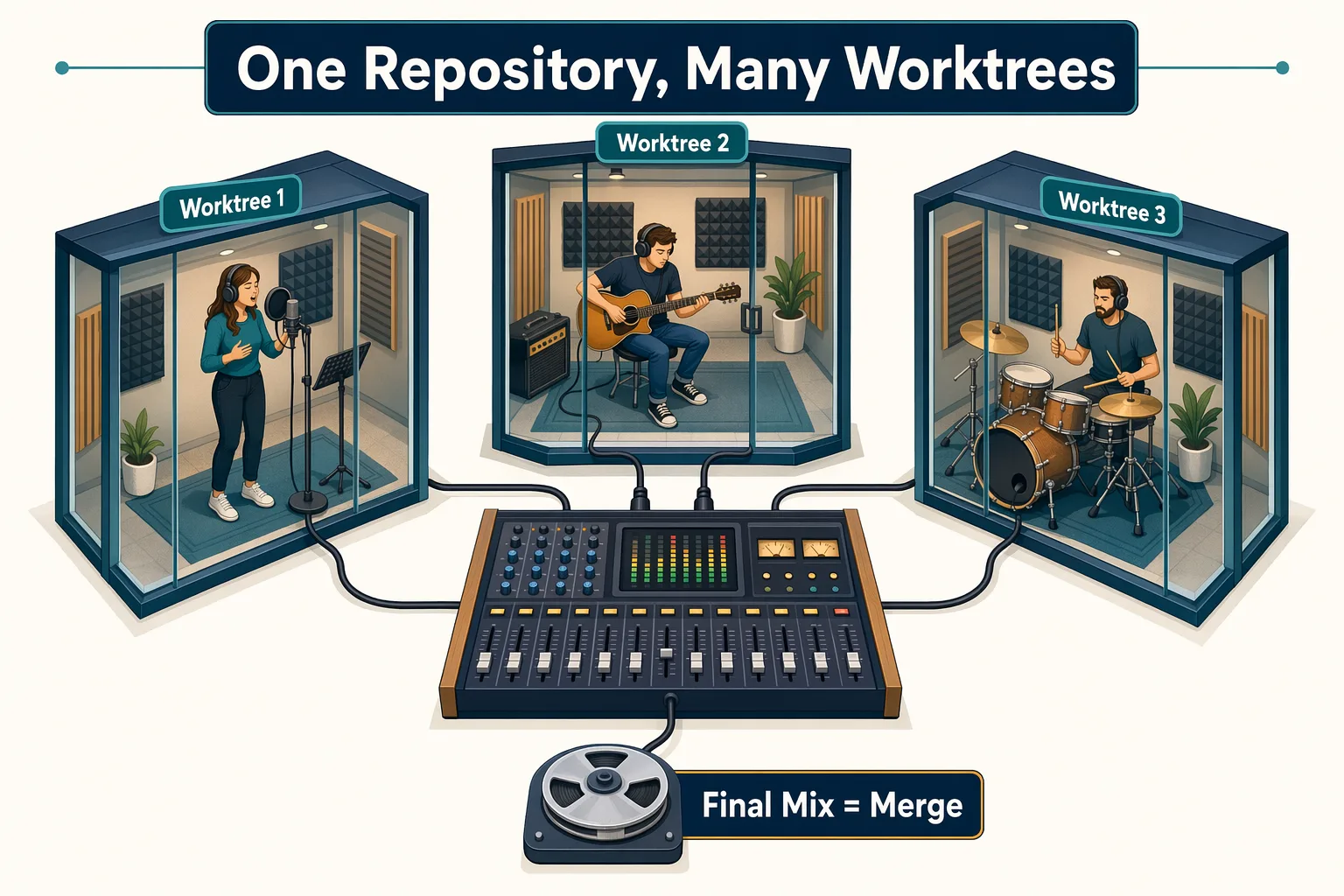
A worktree is like a separate recording booth. It’s connected to the same repository (the same song), but it has its own folder and branch so parallel work doesn’t collide.
Core Concepts
What Is a Git Worktree?
A Git worktree lets you create additional working directories for the same repository. Each worktree is usually checked out to a different branch (or commit).
This allows you to work on multiple tasks or branches simultaneously without stashing changes or constantly switching branches in a single folder.
Why the GitHub Copilot app Uses Worktrees
| Without isolation | With a worktree-backed session |
|---|---|
| Multiple tasks can edit the same folder | Each task gets a separate folder |
| Easy to lose track of branch state | Session branch is visible in the app |
| Tests and diffs can mix together | Diffs stay tied to the session |
| Harder to compare work | Easier to inspect and approve |
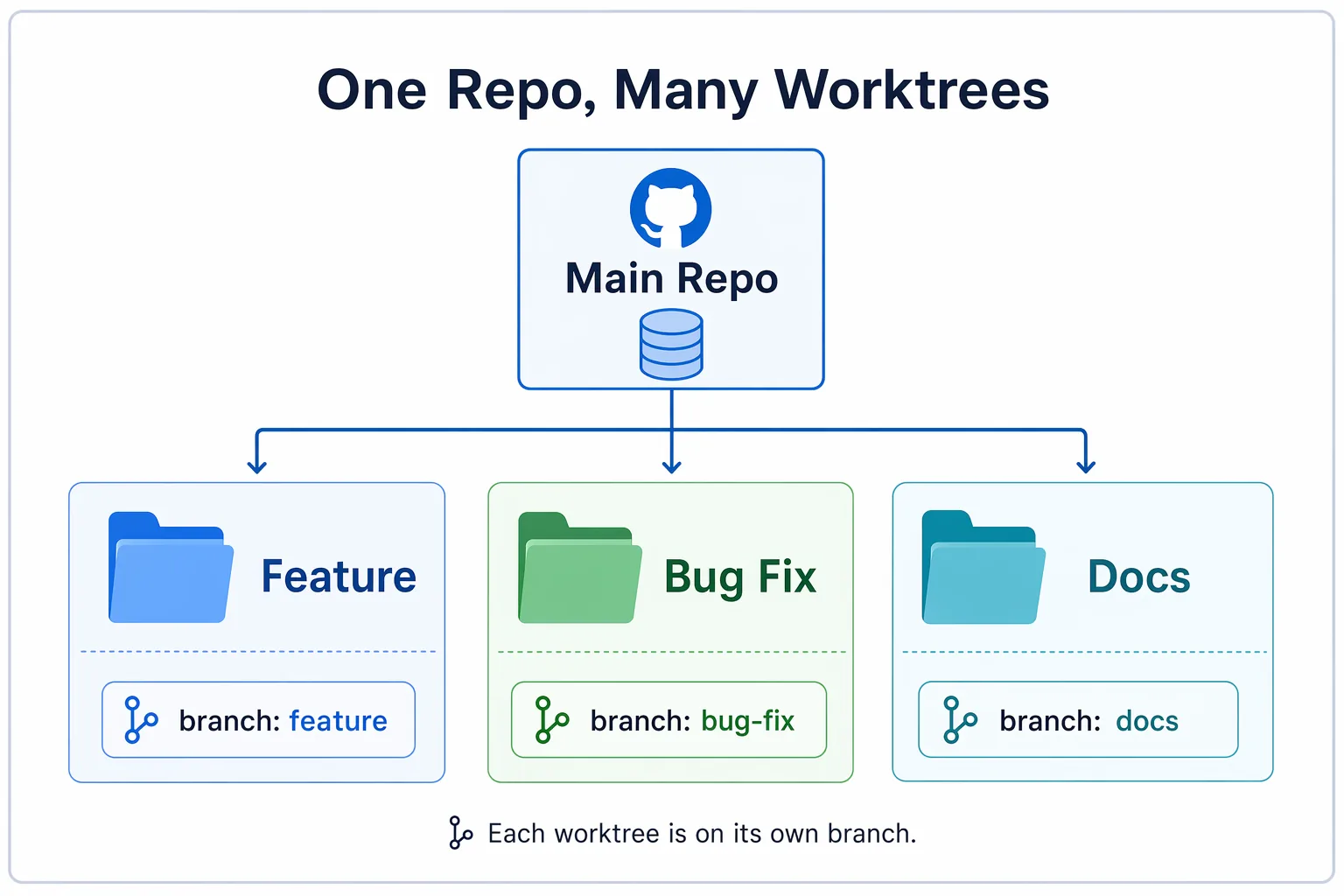
Because each session has its own worktree, you can run several sessions in parallel without mixing their file changes: one session fixes a bug while another explores a different branch. For this chapter, work through one session at a time.
Where a Session Runs
When you start a session with +, the workspace selector below the prompt box lets you choose where the work happens. The menu also has Base branch, which sets the branch that a new worktree starts from.
The app remembers your last choice. You chose Current checkout in Chapter 00, so switch back now: point to the copilot-app-for-beginners project, select +, open the workspace selector, and choose New worktree. You don’t need to submit a prompt; the app keeps the choice. A session that you start with Create from (more on that in a moment) always gets a new worktree.
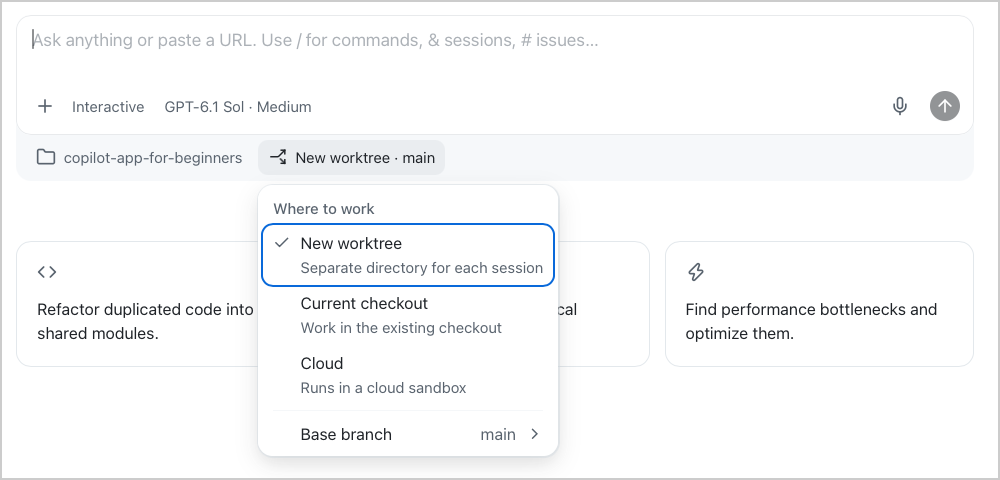
The choices trade off speed against isolation:
| Workspace | What it means | Choose it when… |
|---|---|---|
| New worktree | The session gets its own folder and branch beside your clone | You want changes, branches, and diffs kept separate from your main checkout (the safe default this course uses) |
| Current checkout | The session works directly in your existing clone, with no separate folder | You want a quick, low-stakes look and don’t mind the session touching your working folder |
| Cloud | The session runs in a cloud sandbox on GitHub’s hosted infrastructure instead of your machine. Cloud sandboxes are in public preview | You want to offload the work or keep your local environment untouched |
Worktrees separate files and branches. They do not separate everything on your machine. Dev servers, databases, and ports can still collide if two sessions use the same ones. When you run more than one app preview later, use different ports.
Context Syntax
The GitHub Copilot app lets you add context and commands in the prompt box with a few special characters:
| Syntax | Use it for | Example |
|---|---|---|
@ | Files or folders | @samples/book-app-web/src |
# | Issues or pull requests | #12 |
/ | Slash commands | /chronicle standup |
& | Other sessions, when the prompt box offers it | Type & and pick a session from the list |
Slash Commands
Slash commands are shortcuts you type in the prompt box. They can open app utilities, invoke agent behaviors, inspect usage, or trigger installed skills. The safest way to discover what your app supports is to type / in the prompt box and read the palette. Commands can vary by app version, enabled plugins, installed skills, and organization policy.
For this chapter, you only need two commands:
| Command | What it’s for | Use it when… |
|---|---|---|
/chronicle | Opens session history features. /chronicle standup summarizes your work from the last day | You want a recap of your recent work |
/context | Shows the session’s branch, worktree, token usage, and context details | You want to see how much conversation and file text the session is holding |
Optional: Other slash commands you may see
| Command | Description |
|---|---|
/agent | Select or switch the active agent for a session. It appears after you add a custom agent (Chapter 04). |
/collect-debug-logs | Create a debug log archive for troubleshooting, or upload one as a secret gist. |
/context | Show session context details such as token usage (how much text the model is holding), context window size, and AI credit spend. |
/create-canvas | Create or change a canvas with the built-in canvas-authoring skill. Chapter 06 covers canvases. |
/orchestrate | Coordinate multi-session or multi-repo work by delegating to child sessions. |
/research | Research a topic and produce a cited report. |
/review | Review the changes in the current session. |
/rubber-duck | Ask a critic agent to review your approach or implementation. The critic uses a different model from your session. |
/skills | Manage skills. /skills reload reloads skills during a session. |
/usage | Open usage and rate-limit details for your plan. |
/[skill-name] | Invoke an installed skill directly, such as /book-app-reviewer in Chapter 04. The available commands depend on your installed skills. |
When in doubt, type / and use the in-app palette to discover what’s available.
Exercise: Start a Session from a Branch and Attach an Issue
An empty state is the message shown when no books match your filters. You’ll start a session from a practice branch where that message has intentionally been made less helpful, then attach the corresponding GitHub issue as context. Your forked repository already has the branch and issue if you ran the setup script in 00 - Setup.
Perform these steps:
-
In the sidebar, point to the
copilot-app-for-beginnersproject, then select the Create from icon that appears next to it.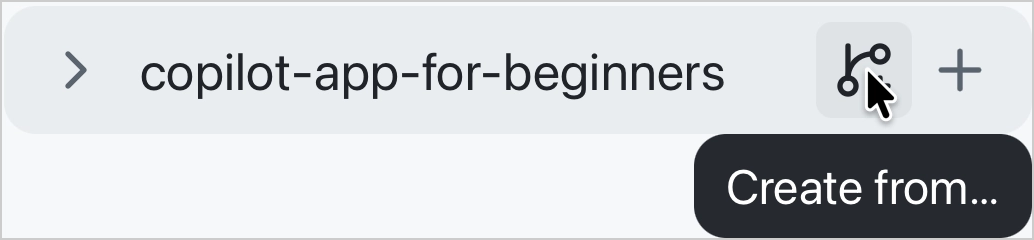
-
Select the Branches tab, then select
practice-empty-state-copy. The app starts a new session from that branch in a new worktree. -
In the session prompt box, set the Mode to Plan.
-
Type
#3, then select Improve the empty state copy from the issue picker to attach it to the prompt. If your seeded issue has a different number, type#and select it by title. -
Add the following instruction after the attached issue, then send the prompt:
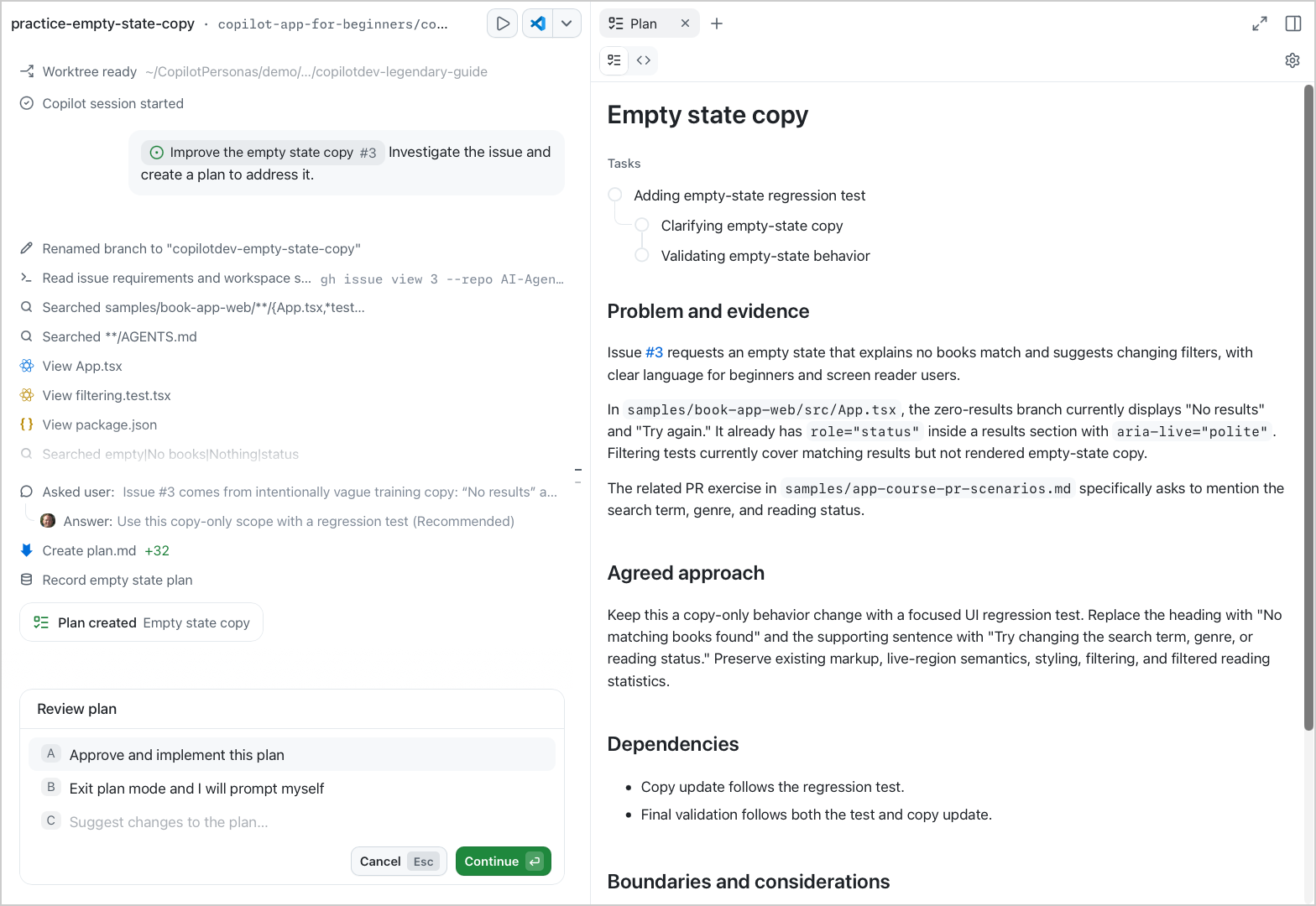
Investigate the issue and create a plan to address it.Copilot should analyze the issue and generate a plan that you can review before making any changes. Copilot may first ask a short question about the scope. If it does, select the recommended answer.
When the plan is ready, it opens in the Plan tab and a Review plan box replaces the prompt box. You can approve and implement the plan in Autopilot, exit plan mode and write your own prompts, or suggest changes to the plan.
-
Select Exit plan mode and I will prompt myself. The session leaves plan mode and returns to Interactive, so you can continue with your own prompts.
Before making changes, run the Book App and observe its current behavior so you have a baseline for comparison.
-
Submit this prompt:
Run the Book App in samples/book-app-web and open the preview. -
The preview opens in the built-in browser panel. In the search bar on the book app, search for
hobbitand confirm that The Hobbit appears. -
Replace the search with
zzzz-no-matchto display the empty state. Note its current heading and message so you can compare them with the updated version later.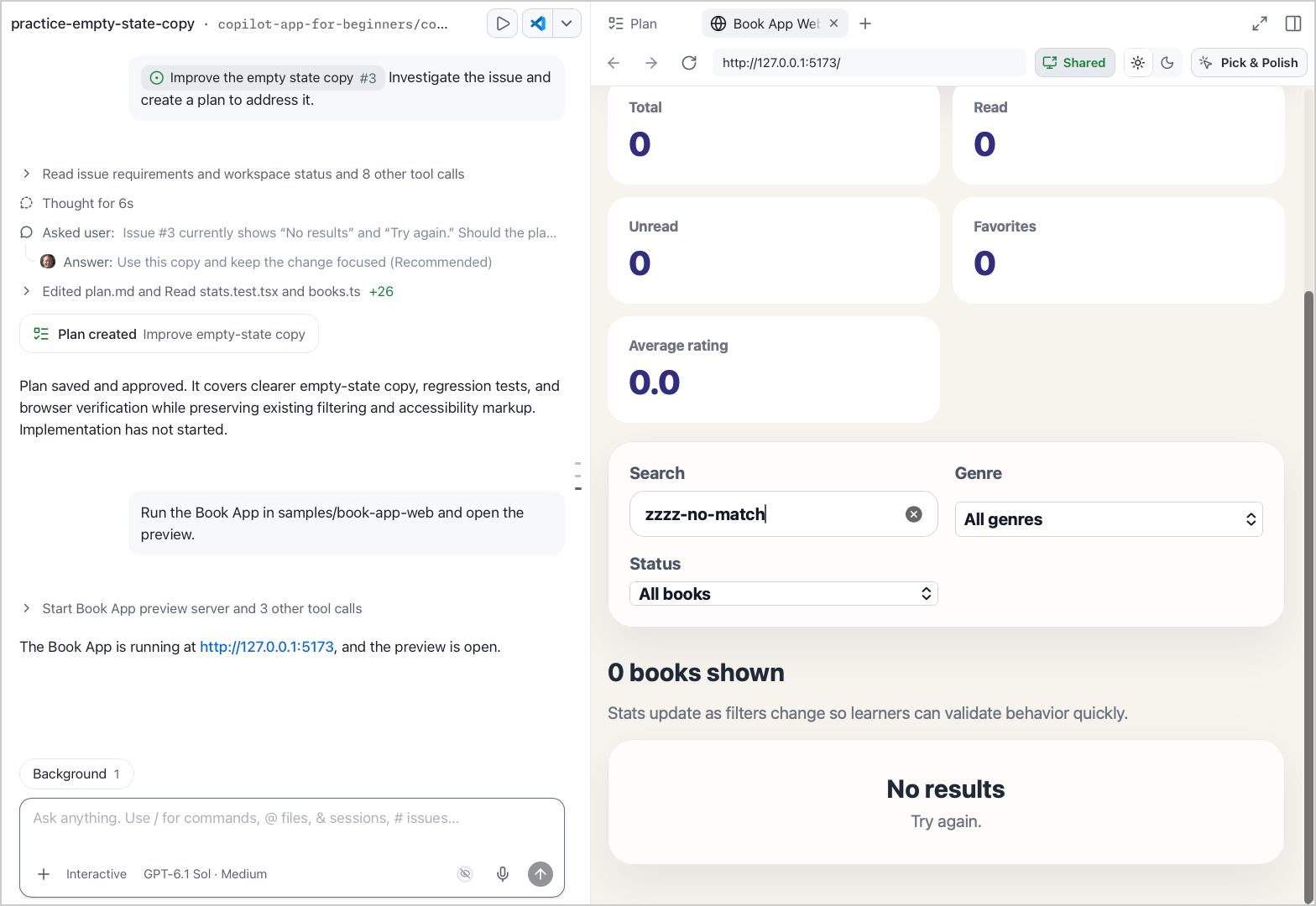
-
Ask the agent to implement the plan:
Implement the planAs Copilot works, you’ll see real-time updates in the plan checklist. The Changes tab shows the diff of the files being modified.
-
Select the Changes tab in the review panel or the Changes pill above the prompt box to inspect the diff.
-
Reload the browser tab and try the same search again. Confirm that the empty-state message suggests changing the search term, genre, or reading status.
Exercise: Check the Session with Slash Commands
Use the two slash commands from Slash Commands to review the session you just worked in.
-
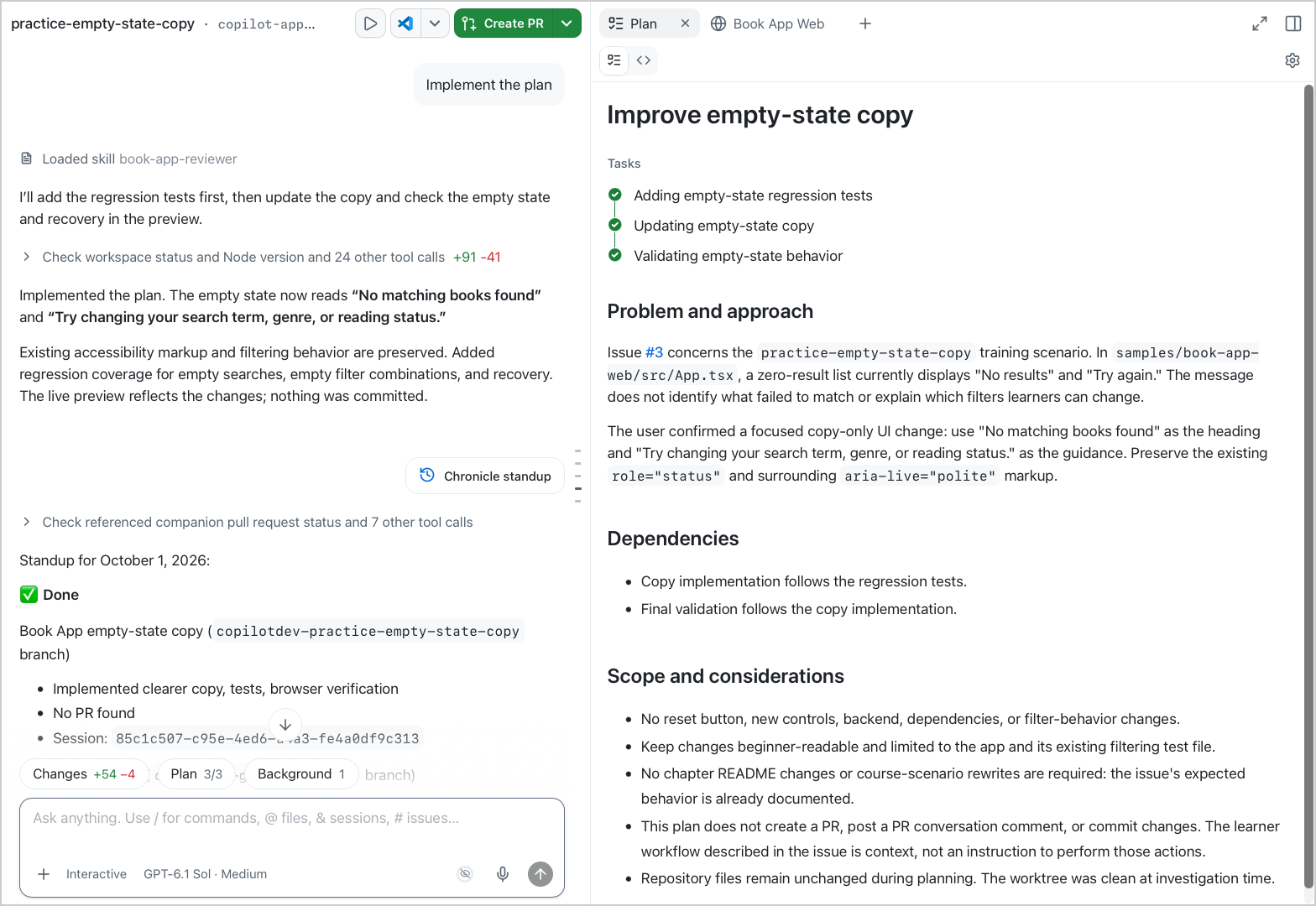
In the prompt box for the session you have been using, submit the following slash command:
/chronicle standupExpected Output: Copilot should report your work from the last day. The report should include this session and the changes you made in it.
-
Next, submit the following slash command to check the session, token, context, and worktree details:
/contextIn the session menu, select the Context bar to expand its breakdown.
Context is the content the GitHub Copilot app is using for the current session. Checking it helps you know when a session is getting overloaded before you add more files, issues, or instructions.
Expected Output: The GitHub Copilot app opens the session menu and displays session, token, context, and usage information.
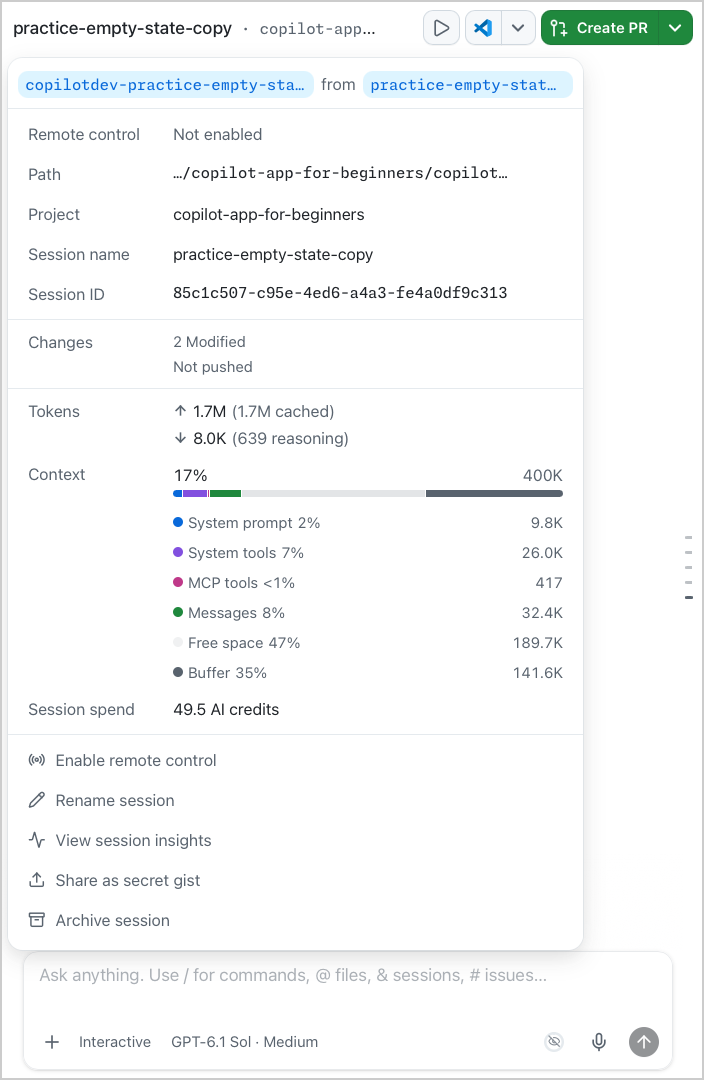
- The session details show the working branch and base branch, Remote control, Path, Project, Session name, Session ID, and Changes.
- Tokens shows how many tokens the session sent to the model (up arrow) and received from the model (down arrow).
- Expanding Context shows how the context window is divided among the system prompt, system tools, MCP tools, messages, free space, and buffer.
- Session spend shows the AI credits used by the session.
Troubleshooting
If a session folder, branch, or preview looks wrong, start with appendices/git-worktrees.md and the Troubleshooting Reference.
Session, worktree, and context problems
I don’t see the practice branches
Run the Chapter 00 setup script again, or follow appendices/training-github-scenarios.md. Confirm you connected your fork, not the upstream course repo.
The session edited the wrong folder
Open the session details and check the worktree path and branch name. Prefer a new worktree for course exercises.
/context or /chronicle is missing
/context works only after the session has at least one sent prompt. In a new session, submit a prompt first, then try again.
Type / and use the in-app palette. The official list is in Slash commands for the GitHub Copilot app.
Two previews collided
Worktrees isolate files and branches, not ports. Stop one Vite server or start the second on port 5174.
Key Takeaways
- Sessions are focused agent workspaces with their own branch, diff, and history.
- Worktrees keep session changes separate from your main checkout. A new worktree is the safe default.
- Worktrees isolate files and branches, but not ports, databases, or background processes. Use different ports for parallel previews.
@attaches files and folders,#attaches issues and pull requests, and/runs commands such as/chronicleand/context.
Assignment

Use the workflow from this chapter to add a light and dark theme to the Book App in an isolated worktree. The earlier exercise used # to attach an issue; this time, use @ to attach the code the agent needs. Keep the work local. Chapter 03 covers the issue and pull request workflow.
-
In the sidebar, point to the
copilot-app-for-beginnersproject and select Create from. On the Branches tab, selectmainto start a new worktree session. -
Ask Copilot to run
samples/book-app-weband open the preview. -
Submit
/contextand inspect the session details. Confirm that the working branch is separate frommainand note the worktree path. -
Inspect the app and confirm that it only supports a light theme.
-
Set the session to Plan mode. Type
@samples/book-app-web/src, select the folder from the picker, and include the following request:Plan a light and dark theme toggle for the Book App using the attached source folder. - The user can switch between light and dark themes. - The toggle has a clear, accessible label. - Text, controls, cards, and backgrounds remain readable in both themes. - Search, filters, and reading statistics keep their current behavior. Name the files you expect to change and the checks that will show the feature works. Keep the plan small. Do not change any files yet. -
Review the plan, then select Exit plan mode and I will prompt myself and ask Copilot to implement it.
-
Inspect the diff and confirm that it only contains changes needed for the theme toggle. Reload the browser preview and verify that the toggle switches between readable light and dark themes. Try
hobbitandzzzz-no-matchin both themes to check the book cards and empty state. -
Ask Copilot to run the relevant tests and build. Inspect the command output before treating the change as complete. Chapter 03 explains these validation steps in more detail.
-
Submit
/chronicle standup. Compare the recap with the diff and checks you observed. It should distinguish completed work from anything still needing attention. -
Ask Copilot to stop this session’s development server. The theme feature remains in its worktree and isn’t added to
main. You don’t need to create an issue or pull request for this assignment.
Success Criteria: You can identify the session’s branch and worktree, explain which context you attached, and show the theme change and its validation evidence without changing main.
What’s Next
In the next chapter, you’ll use isolated sessions for real development work. The inner loop covers review, debug, test, and browser preview. The outer loop covers issues, pull requests, review comments, and checks.
← Back to Chapter 01 | Continue to Chapter 03 →